
How to use screen recording questions
Screen recording questions let candidates record their screen while narrating their response. This is ideal for walkthroughs, portfolio presentations, technical demonstrations, and any task where you need to see how a candidate approaches something.
What screen recording questions are
Unlike live video calls, screen recording is asynchronous. Candidates record their screen at their own pace, and you review the recording later. You see exactly what they're doing on screen while hearing their explanation.
This works well for:
Walking through a portfolio or work sample
Demonstrating a technical skill or coding task
Presenting a slide deck or document
Showing how they would solve a problem or approach a task
Sharing a Google Drive file, Figma design, or other online resource
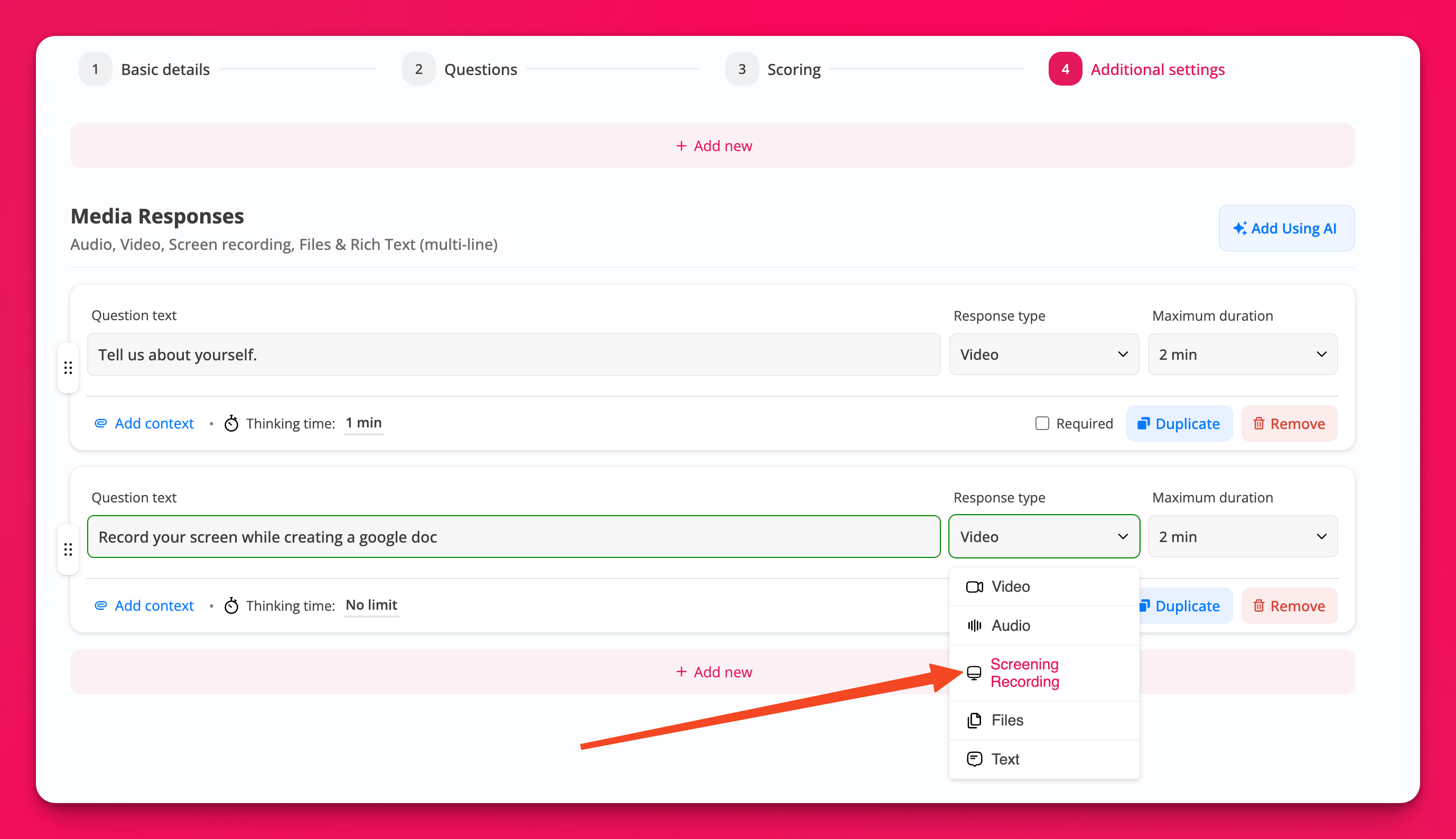
Screen recording is one of several media response types available when creating questions:
Creating a screen recording question
Go to your Jobs list and open the job you want to edit
Click Edit and navigate to the Questions step
Under Media Responses, click Add new
Enter your question text—for example, "Record your screen while creating a Google Doc and explaining your process"
Select Screen Recording from the Response type dropdown
Set the Maximum duration for the recording
Toggle Required if candidates must answer this question
Click Save to save your changes
Best practices for screen recording questions
Be specific about what you want
A vague question like "Show me your work" produces vague responses. Instead, guide candidates with clear instructions:
"Walk us through your favorite project in your portfolio. Explain your role, the challenges you faced, and how you solved them."
"Share your screen and demonstrate how you would approach this coding problem. Talk through your thought process out loud."
"Open your resume in Google Drive and highlight the experience most relevant to this role. Explain why."
Set appropriate time limits
For walkthroughs and demonstrations, 5-10 minutes is usually sufficient. For complex tasks, consider up to 15-20 minutes. Keep in mind that longer recordings are harder to review quickly.
Use additional information for context
Click the Add context button on the question card to provide background, links, or instructions. You can include formatted text, code blocks, links, or even an instructional video.
For example, if you want candidates to review a design file, include the link in the question context.
Settings that affect screen recording
Retakes
You can allow candidates to record multiple attempts. Go to Additional settings and set the number of retakes under Question Retakes. Candidates will see a Retake button with remaining attempts shown.
For tasks where you want to see a polished response, allow retakes. For more spontaneous or authentic responses, consider disabling retakes.
Thinking time
If you enable thinking time, candidates see a countdown before recording starts automatically. Thinking time and retakes cannot be used together—if thinking time is on, retakes are disabled for that question.
Thinking time works well when you want candidates to prepare mentally before recording begins.
Learn more about how thinking time and retakes work.
Showing questions in advance
If you enable Show questions in advance in Additional settings, candidates can see all questions before they start recording. This gives them time to prepare, especially useful for screen recording tasks that require opening files or applications.
What candidates see
When candidates reach a screen recording question, they'll:
See your question text and any context you added
Click to start recording and choose which screen or window to share
Record their screen while speaking into their microphone
Preview the recording before submitting
Retake if allowed, or move to the next question
Screen recording only works on desktop and laptop browsers. Candidates using phones or tablets cannot complete screen recording questions. Consider providing an alternative question type for mobile users or letting candidates know to use a computer.
What you see as the reviewer
You'll see the candidate's screen recording alongside their other responses. You can:
Pause and replay the recording
Add time-stamped comments and ratings
Share the recording with team members
Download the recording if needed
If AI transcripts is enabled for the job, the recording will also include a searchable transcript.